Step-by-Step User & Admin Help Center

Company Admin & Employee Visual Guides

Learn how to manage everything inside /company/login (onboarding, QR attendance, monitoring, payroll, and exit clearance) and /employee/login (clock-in, leaves, receipts, and payslips) with real screen walkthroughs.

Company Admin Guide/company/login → /company/dashboard

1. Signing In & Navigating the Company Admin Portal

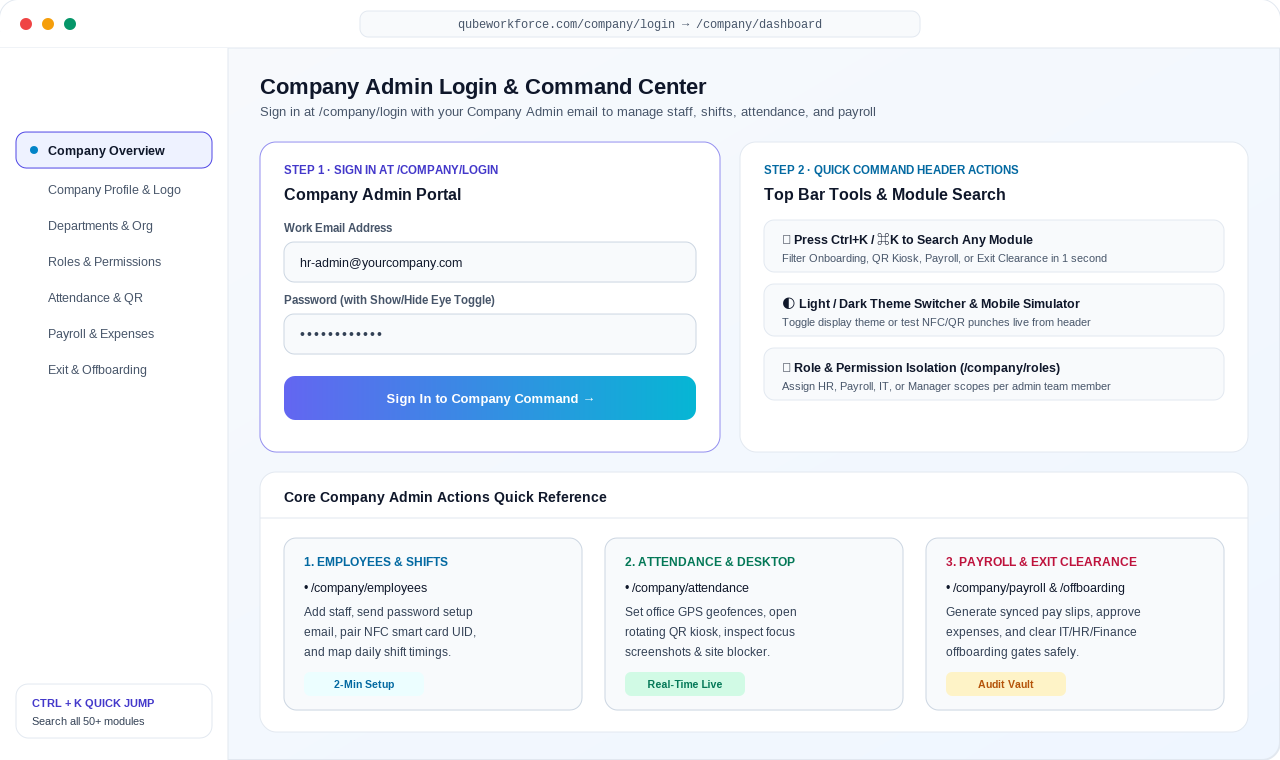
Learn how Company Admins sign in safely, switch Light/Dark display themes, use Ctrl+K quick module search, and manage company permissions.

  1. 1

    Open the Company Login page

    Go to /company/login (or click Sign In → Company Admin in the public header) and enter your Company Admin email and password.

  2. 2

    Jump to any module quickly with Ctrl+K / ⌘K

    Use the sidebar search bar (or press Ctrl+K / Cmd+K) inside Company Portal to filter Attendance, Onboarding, Payroll, or Exit tools instantly.

  3. 3

    Use header utilities anytime

    Switch Light / Dark mode from the top header toggle, download Desktop Agents, or test Employee punches with Mobile Punch.

  4. 4

    Assign granular department roles

    Open Roles & Permissions (/company/roles) to grant HR, Payroll, IT, or Manager access scopes before inviting other admins.

Helpful Tip: You can keep both /company/* and /employee/* signed in side-by-side in the same browser using separate portal sessions.
Open Company Login
/company/login → /company/dashboardClick to Zoom
Company Admin login screen and workspace overview with Quick Jump search
QubeWorkforce.com
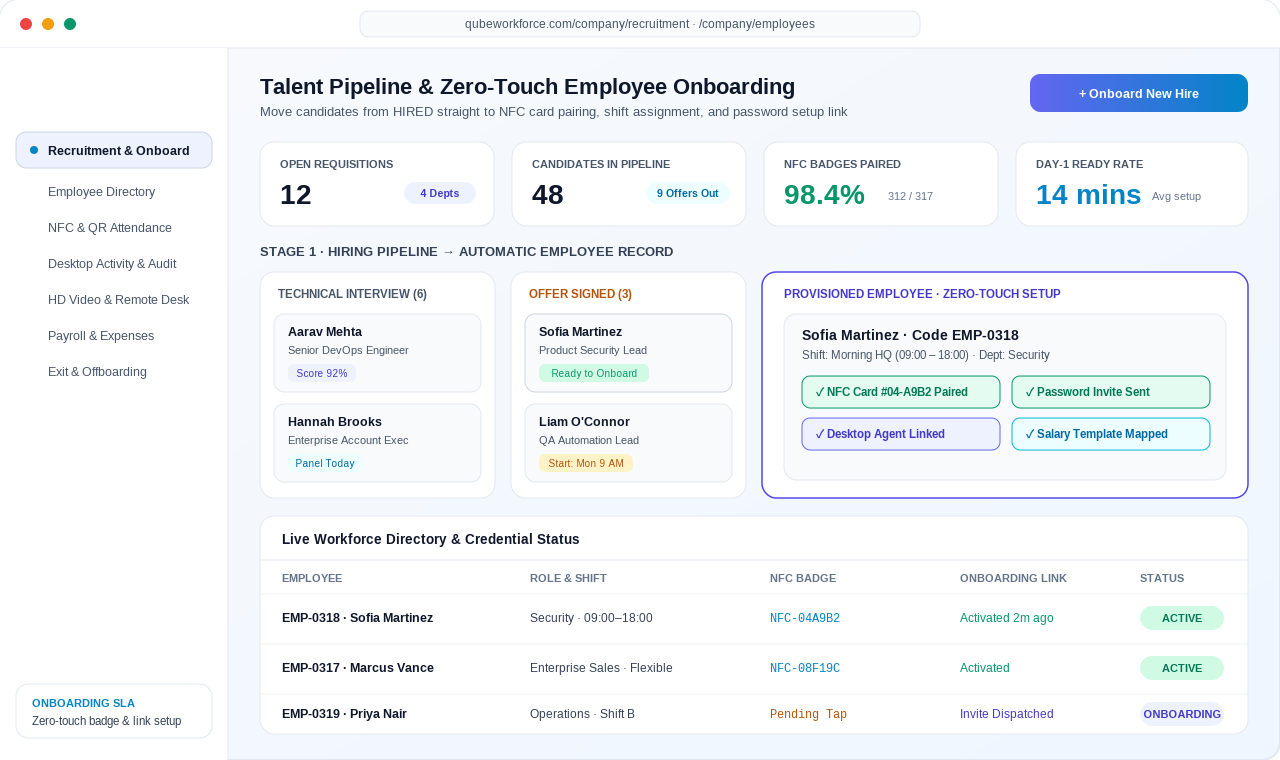
Company Admin Guide/company/recruitment · /company/employees

2. Hiring Candidates & Zero-Touch Employee Onboarding

Step-by-step guide to creating job requisitions, converting signed offers into employee records, pairing NFC badges, and sending Day-1 password setup links.

  1. 1

    Move hired candidates in Recruitment ATS

    Open Recruitment & ATS (/company/recruitment), advance applicants through Screening, Interview, and Offer Sent, and mark them HIRED.

  2. 2

    Create or open the Employee profile

    In Employee Directory (/company/employees), click + Add Employee or open the onboarded record to assign Department, Shift timing, and Employee Code.

  3. 3

    Pair an NFC Smart Badge UID

    Click Pair NFC Badge on the employee row and enter or tap the card UID so lobby kiosks and mobile readers recognize them immediately.

  4. 4

    Send one-time Password Setup Link

    Click Send Setup Link to issue a secure one-time password onboarding email for the Employee Self-Service Desk (/employee/login).

Helpful Tip: Day-1 setup works even before physical laptops arrive—employees can clock in via lobby QR right after activating their account.
Manage Onboarding
/company/recruitment · /company/employeesClick to Zoom
Recruitment pipeline ATS stages and automated employee onboarding checklist
QubeWorkforce.com
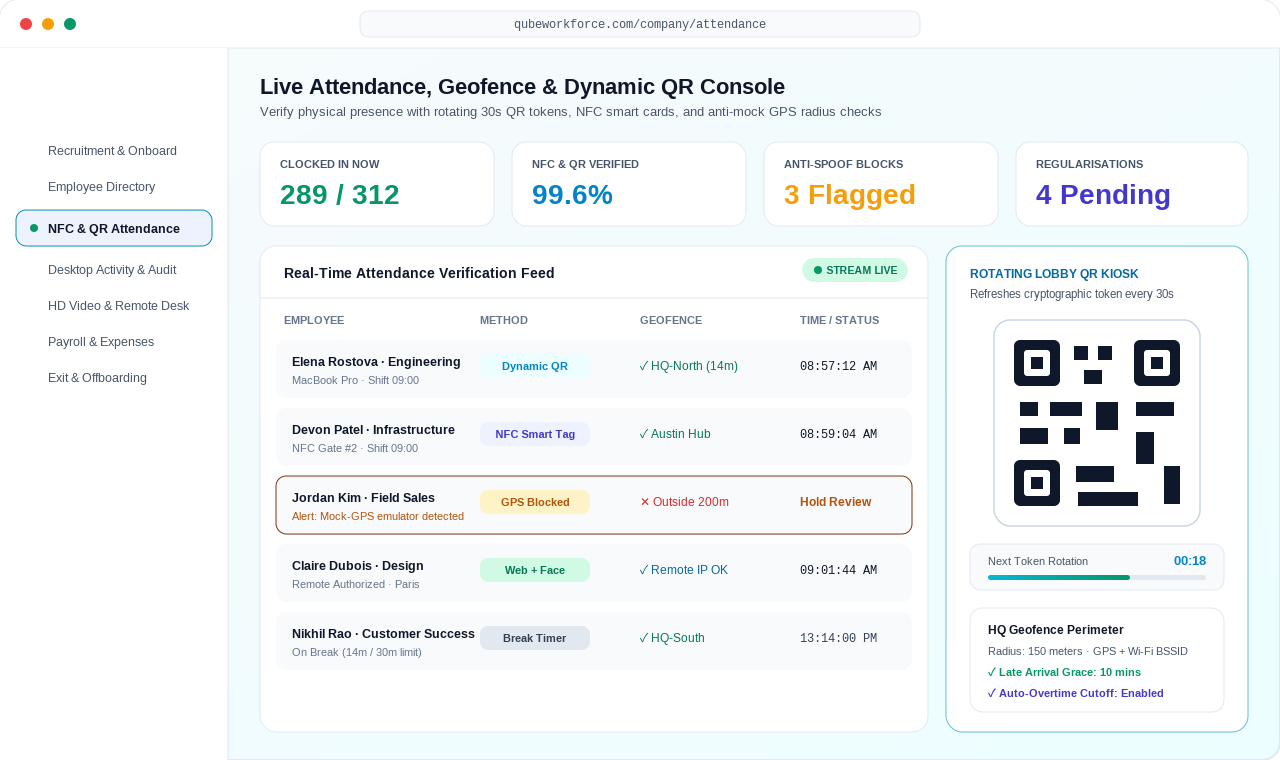
Company Admin Guide/company/attendance · /company/qr-station

3. Tracking Daily Attendance, Rotating QR & Geofencing

Configure office GPS perimeters, run a tamper-proof 30-second rotating lobby QR display, detect mock-GPS emulators, and approve regularisations.

  1. 1

    Define Office Geofence Locations

    Add your office coordinates and radius (e.g., 150 meters) in Attendance Locations so mobile/browser clock-ins confirm physical proximity.

  2. 2

    Display the Dynamic QR Station at reception

    Open Dynamic QR & NFC Station (/company/qr-station) on any lobby tablet or screen—tokens rotate automatically every 30 seconds to stop photo sharing.

  3. 3

    Monitor the Live Attendance Stream

    Watch real-time clock-ins, break timers, remote authorized punches, and flagged mock-GPS warnings on /company/attendance.

  4. 4

    Review Missed-Punch Regularisations

    Approve or decline employee regularisation requests in one click before closing monthly attendance.

Helpful Tip: Employees assigned as Remote Authorized can punch from approved IP/geofence rules without triggering outside-radius blocks.
Open Attendance Console
/company/attendance · /company/qr-stationClick to Zoom
Real-time attendance stream, lobby rotating QR code, and geofence validation
QubeWorkforce.com
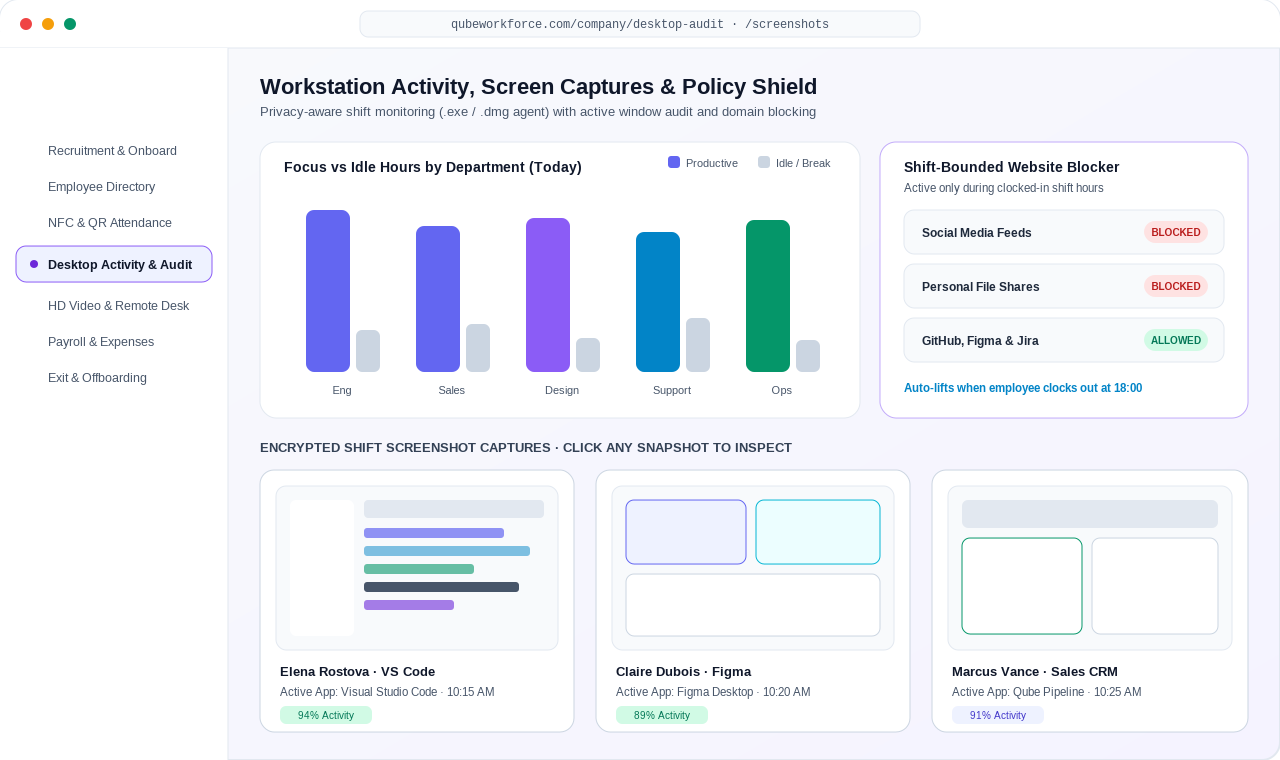
Company Admin Guide/company/desktop-audit · /company/screenshots

4. Monitoring Desktop Activity, Screenshots & Site Blocker

Deploy the Windows (.exe) or macOS (.dmg) desktop agent, inspect department focus vs idle hours, audit shift screenshots, and block distracting URLs during shifts.

  1. 1

    Download & install the Desktop Agent

    Go to Desktop Agent (/company/agent-downloads) to grab the company-linked installer for employee Windows or macOS workstations.

  2. 2

    Inspect Department Focus vs Idle charts

    Open Desktop & URL Tracking (/company/desktop-audit) to review active foreground applications and productive hours by team.

  3. 3

    Audit Encrypted Shift Screen Captures

    Open Screenshots (/company/screenshots) to inspect periodic workstation captures sorted cleanly by employee and timestamp.

  4. 4

    Configure Shift-Bounded Website Restrictions

    Add social media or non-work domain rules—restrictions enforce strictly while clocked in and pause automatically after clock-out.

Helpful Tip: Website blocking and screen capture respect privacy boundaries and remain completely inactive outside assigned shift check-in hours.
Open Desktop Audit
/company/desktop-audit · /company/screenshotsClick to Zoom
Workstation focus hour charts, website blocker rules, and shift screenshot gallery
QubeWorkforce.com
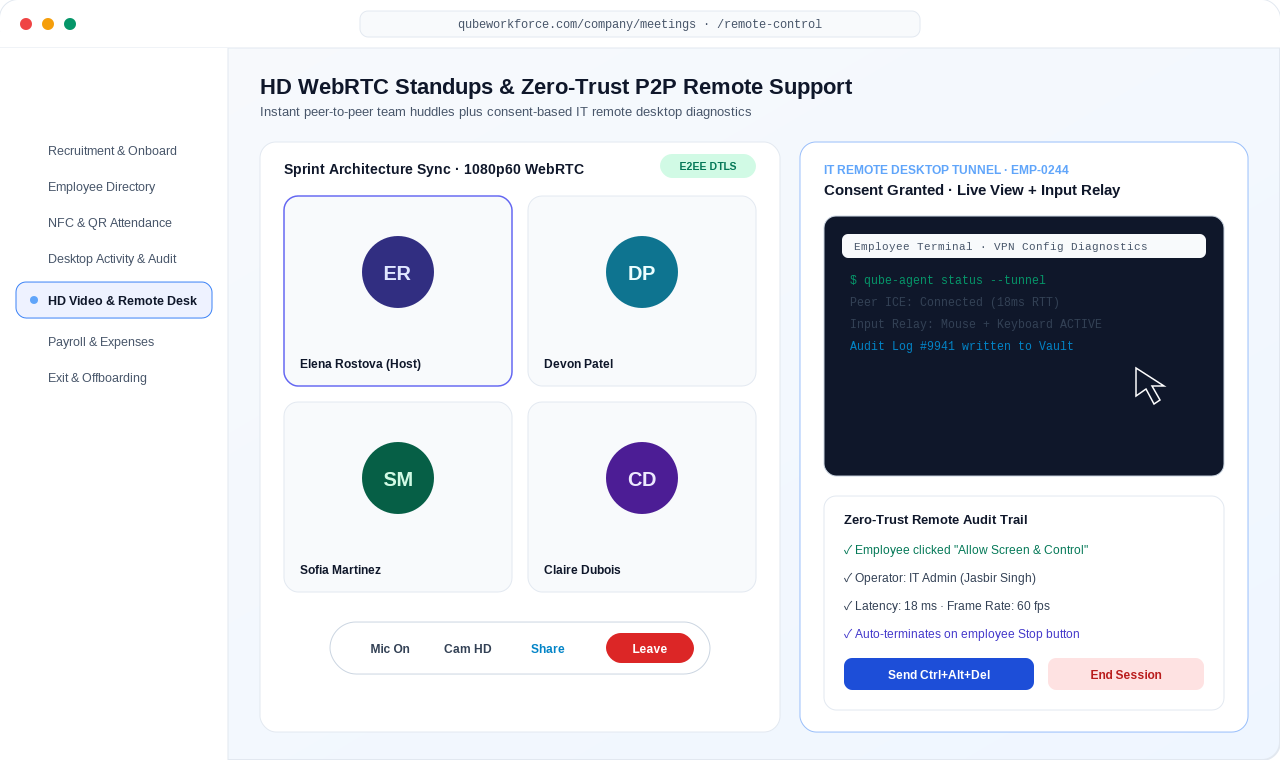
Company Admin Guide/company/meetings · /company/remote-control

5. Hosting HD Video Standups & Remote IT Support

Run encrypted 1080p60 video standups directly in the portal and perform consent-gated IT troubleshooting via peer-to-peer mouse/keyboard relay.

  1. 1

    Start or schedule a Video Room

    Open Video Conferencing from the sidebar to create a DTLS-SRTP encrypted team standup with screen sharing and participant tiles.

  2. 2

    Request Remote Control on an IT ticket

    Open Remote Control & Injection (/company/remote-control), choose the active online workstation, and send a consent request.

  3. 3

    Wait for Employee one-click confirmation

    Each company chooses (Remote Control page, "Ask the employee before connecting"). Off, the default for company-owned computers: the session starts at once and the employee is shown who is connecting. On: the employee sees an "Allow remote control?" prompt; nothing is shared until they allow it, and Deny or no answer within 60 seconds cancels it.

  4. 4

    Review the session audit log

    Once finished, click End Session. Every remote support event logs operator identity, start/end timestamps, and consent status.

Helpful Tip: Employees can revoke control immediately at any second using their Stop Session button.
Open Video & Remote Tools
/company/meetings · /company/remote-controlClick to Zoom
WebRTC 1080p60 video conference grid paired with consent-based P2P remote control
QubeWorkforce.com
Company Admin Guide/company/payroll · /company/offboarding

6. Running Monthly Payroll & Employee Exit Clearance

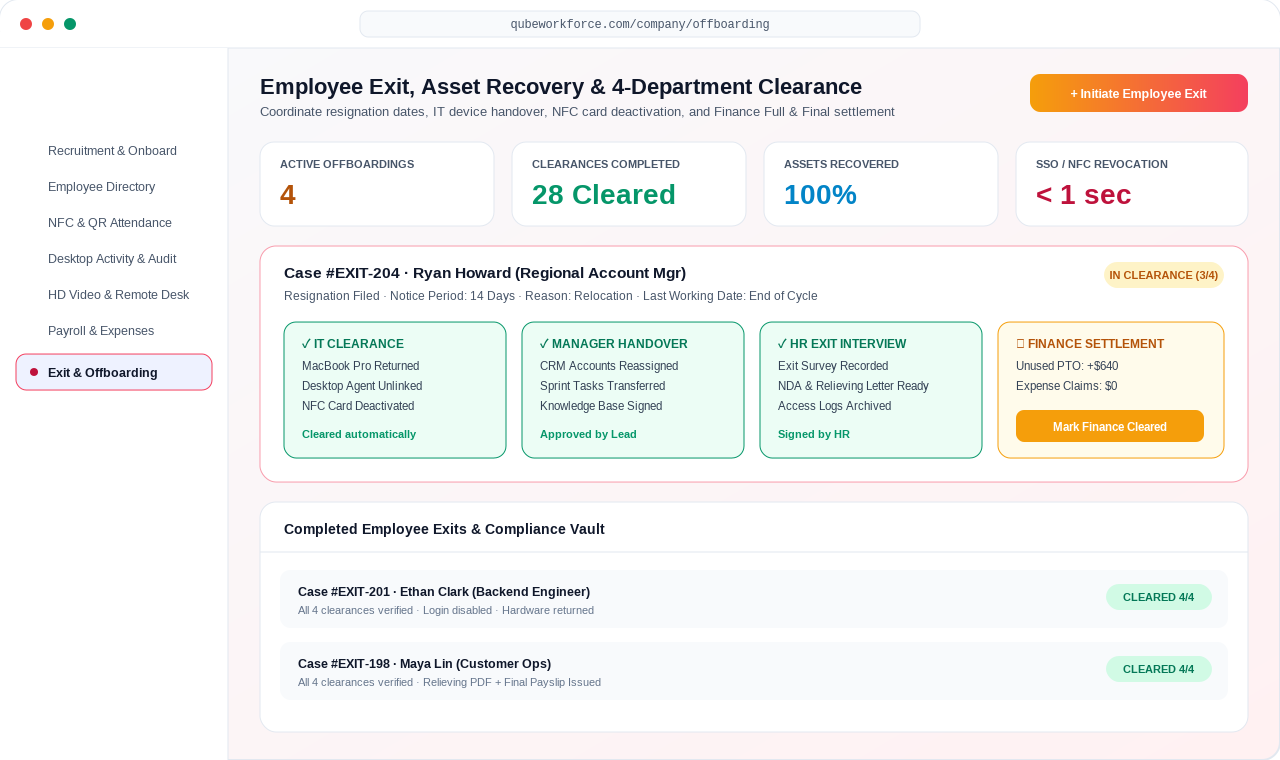
Disburse attendance-synced monthly pay runs and protect company assets whenever an employee resigns using 4-department clearance gates.

  1. 1

    Run Attendance-Synced Payroll

    Open Automated Payroll Engine (/company/payroll) to review worked days, overtime, approved expense reimbursements, PDF payslips, and NACHA/SEPA exports.

  2. 2

    Initiate an Employee Exit Case

    Open Offboarding (/company/offboarding), click + Initiate Employee Exit, and record Resignation Date, Last Working Date, and exit reason.

  3. 3

    Complete 4-Department Clearance Gates

    Track and toggle sign-offs cleanly for IT (laptop & NFC recovery), Manager handover, HR exit interview, and Finance Full & Final settlement.

  4. 4

    Mark Cleared to revoke workspace access

    Once cleared, login sessions, NFC card access, and desktop agent links deactivate while payslips and relieving records remain archived safely.

Helpful Tip: Unused PTO encashment and pending expense claims are highlighted automatically on the Finance clearance gate.
Open Payroll & Offboarding
/company/payroll · /company/offboardingClick to Zoom
Employee offboarding 4-department clearance checklist and final settlement status
QubeWorkforce.com
Employee Desk Guide/employee/login → /employee/dashboard

7. How Employees Sign In (/employee/login) & Clock In Daily

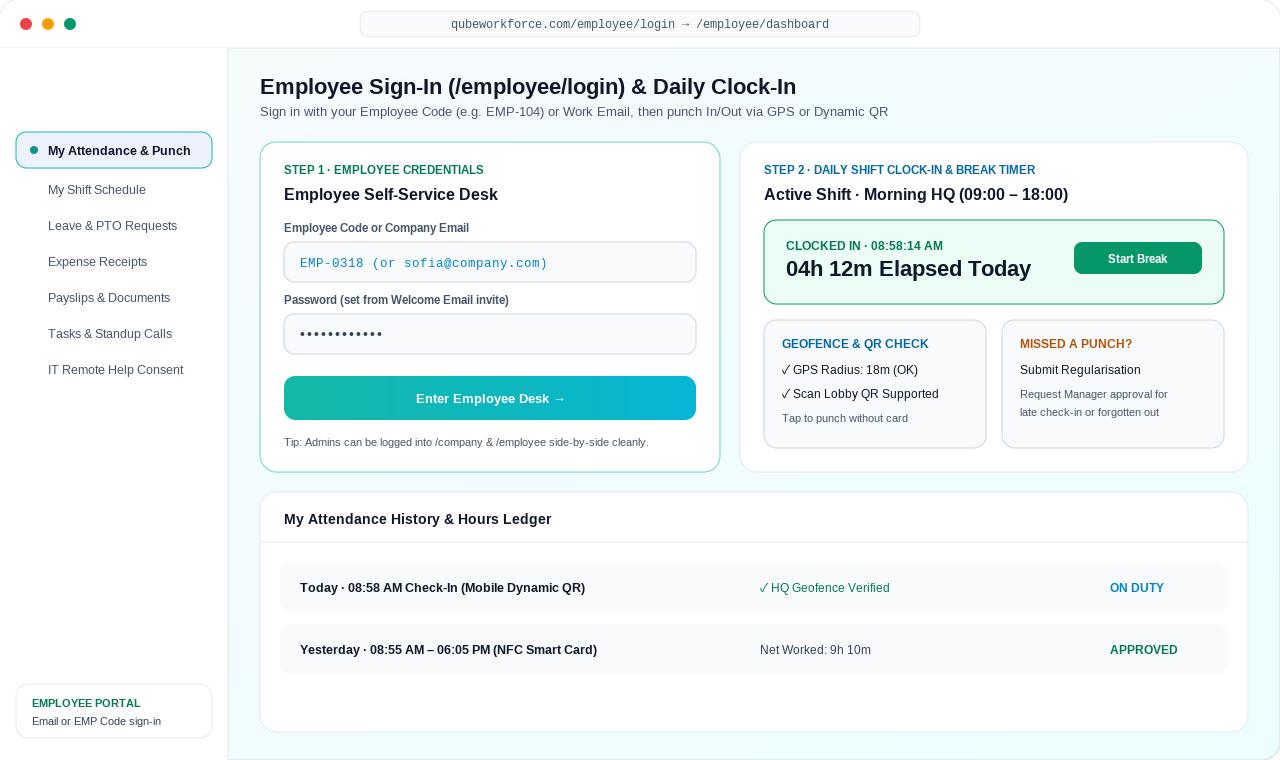
Step-by-step walkthrough for employees signing in using their Employee Code or work email to record Check-In, Break, and Check-Out punches.

  1. 1

    Activate password from Onboarding email (first time)

    Click the one-time setup link sent by HR to choose your personal password before your first shift.

  2. 2

    Sign in at /employee/login

    Enter either your Employee Code (e.g. EMP-0318) or your Work Email along with your password. Use the eye icon to verify typing.

  3. 3

    Punch Check-In / Break / Check-Out

    Inside your Employee Dashboard, tap Check In (or scan the lobby dynamic QR code) while inside your office geofence—track live shift hours and breaks.

  4. 4

    Submit a Regularisation if you missed a tap

    If you forgot to tap In or Out, choose Submit Regularisation with a note so your manager can approve the correction cleanly.

Helpful Tip: If a login attempt shows "Employee code or password is incorrect" or "Email or password is incorrect", check the spelling with HR and reset the password if needed. For security the message does not say which of the two is wrong.
Open Employee Login
/employee/login → /employee/dashboardClick to Zoom
Employee login screen with employee code or email and daily attendance punch widget
QubeWorkforce.com
Employee Desk Guide/employee/leaves · /employee/expenses · /employee/payslips

8. Applying for Leave, Expense Claims & Downloading PDF Payslips

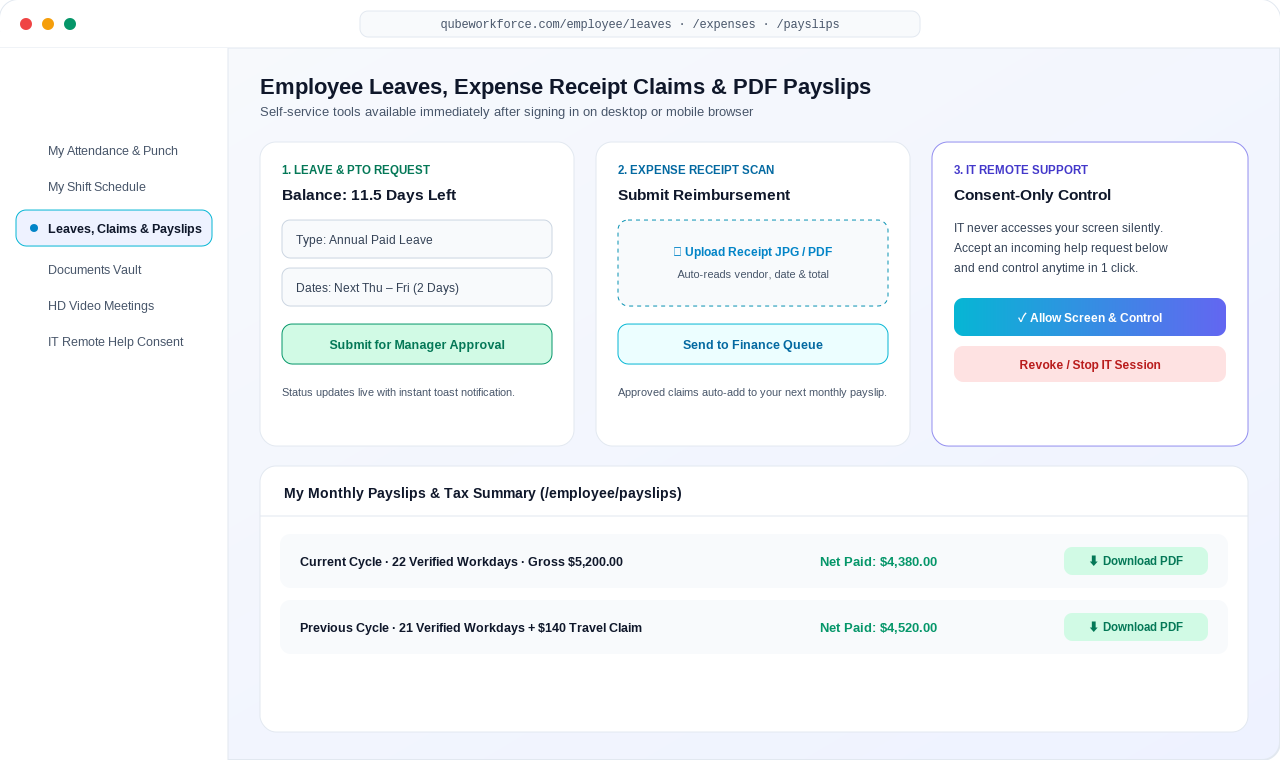
Everything an employee needs after logging in: checking PTO balances, submitting leave, scanning receipts, and downloading monthly payslips.

  1. 1

    Check balance & apply Leave / PTO

    Go to Leaves & PTO (/employee/leaves), review remaining days, choose leave dates and reason, and click Submit for Manager Approval.

  2. 2

    Submit Expense Receipts with OCR

    Open Expenses (/employee/expenses) and upload a photo or PDF of your bill—amount and vendor details queue directly for manager/finance approval.

  3. 3

    Upload Required HR Documents

    Visit Documents Vault (/employee/documents) to submit tax, ID, or compliance forms requested by your Company HR.

  4. 4

    Download Monthly Payslips as PDF

    Open Payslips (/employee/payslips) at the end of every pay cycle to inspect earnings, deductions, reimbursements, and download your official PDF slip.

Helpful Tip: Approved reimbursements automatically appear on your next monthly payslip breakdown.
Open Self-Service Tools
/employee/leaves · /employee/expenses · /employee/payslipsClick to Zoom
Employee leave request, receipt OCR expense claim upload, and monthly PDF payslips
QubeWorkforce.com
Employee Desk Guide/employee/meetings · /employee/workstations

9. Joining Video Meetings & Approving IT Remote Support

How employees join team video standups and safely grant or revoke screen control when IT Helpdesk troubleshoots an issue.

  1. 1

    Join Team Video Standups cleanly

    Open Meetings from your Employee sidebar to enter scheduled HD WebRTC calls with Mic/Camera toggles and 1080p screen sharing.

  2. 2

    Open Workstations to verify Desktop Agent status

    Check /employee/workstations to see your linked computer name, heartbeat status, and policy state.

  3. 3

    Consent explicitly before IT Remote Support begins

    When IT connects to your computer you are always told who is connecting. If your company asks first, you get an Allow / Deny prompt: click Allow only when you are ready; Deny, or no answer within 60 seconds, cancels it.

  4. 4

    Stop control anytime in one click

    Press "Revoke / Stop IT Session" whenever troubleshooting finishes to immediately close remote input access.

Helpful Tip: You are always shown when someone is connected to your computer, every session is recorded with who connected and why, and it stops immediately when they disconnect.
Open Employee Desk
/employee/meetings · /employee/workstationsClick to Zoom
Employee joining WebRTC standup call and approving IT remote diagnostics session
QubeWorkforce.com